Introducing GNU STOCK Membership | Unlock unlimited downloads from $9.99/month. Get Access Now

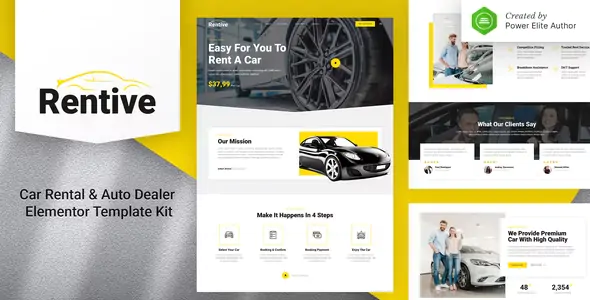
Rentive – Car Rental & Auto Dealer Elementor Template Kit

Rentive – Car Rental & Auto Dealer Elementor Template Kit
GNU STOCK MEMBERSHIP

Rentive is a modern Elementor Template Kit that perfect to create a WordPress-based website for a Car Rental, Auto Dealer, and all kinds of Car Booking Businesses. This kit has a beautiful and unique design with a 100% responsive layout and retina-ready.

This template kit includes stunning carefully crafted 17+ stunning templates, you can build your professional-looking website with a low budget just in a click away!

Features:

  • Using Free Plugins (Elementor Pro is not required)
  • Modern & Clean Design
  • 17+ Ready to use templates
  • Fully Responsive Layout
  • Retina Ready
  • Fully Customizable
  • Cross Browser Compatibility: Chrome, Firefox, Safari, Opera

Templates Include:

  • Home
  • About
  • Our Cars
  • Car Detail
  • Reservation
  • Faq
  • Team
  • 404 Page
  • News
  • Single Post
  • Contact
  • Header
  • Footer
  • Offcanvas
  • Metform Booking
  • Metform Reservation
  • Global Theme Style

Required Plugin:

  • ElementsKit Lite
  • Elementor – Header, Footer & Blocks
  • Jeg Elementor Kit
  • MetForm

How to Install:

  1. Download your template kit from your themeforest profile and ensure it remains zipped.
    • If you use the Safari browser, you must ensure "Open Safe Files after Downloading" is disabled in Preferences
  2. Install the plugin from Plugins > Add New by searching for Template Kit Import.
  3. Once the plugin is activated, go to Tools > Template Kit 
     
  4. Click on Upload Template Kit ZIP file to browse to your zip file and import
    • Note: If you get a zip error here, make sure the file you downloaded has not been unzipped and is an Elementor Template Kit, not a WordPress theme or other template type.
  5. Your Template Kit preview will appear. Click View Installed Kit.
  6. An orange banner will appear if your kit requires additional free plugins. Click Install Requirements for details.
  7. A popup will appear listing the plugins your kit needs installed or activated. Click Install Requirements to proceed.
  8. Begin by clicking Import on the Global Kit Styles first to import the font and colors. Skip this if you want to use an existing style or your theme's styles.
  9. Import each template one at a time in the order shown. Avoid clicking too many at once. Your browser can typically only handle up to 3-4 at a time.

These templates are stored in Elementor under Templates > Saved Templates and only need to be imported once.

If your kit uses Elementor Pro, you will have additional "Global" templates under Templates > Theme Builder.

Detailed Guide

How to import Metforms and content blocks

  1. Import the metform block templates
  2. Import the page template where the form appears and right-click to enable the Navigator
  3. Locate and select the Metform widget and click Edit Form. Choose New, then Edit Form. The builder will appear
  4. Click ‘Add Template’ grey folder icon.
  5. Click ‘My Templates’ tab.
  6. Choose your imported metform template, then click ‘Insert’ (click No for page settings).
  7. Once the template is loaded, make any desired customizations and click ‘Update & Close’ The form will appear in the template
  8. Click Update

Notes:

This Template Kit uses demo images from Envato Elements. You will need to license these images from Envato Elements to use them on your website, or you can substitute them with your own.

Unlock unlimited downloads from $9.99/month

Subscribe to get access to unlimited premium items from our community of global authors and developers.

Get access now
Licence Option
Quality checked by GNU STOCK
Full documentation
Future updates
Author support

Mahmoud Noaman Studios's other items

By choosing "Accept" you agree to store cookies on your device to improve site navigation, analyse use, and aid in marketing activities.

Read More